

Table of Contents
ToggleYou’ve got your Nintendo Switch ready to go, but the battery’s flatlining and you’re not sure if you’re doing this right. Maybe you’ve been using a random USB charger from a drawer, or you’re staring at that dock wondering whether you’re supposed to plug it in a certain way. Charging your Switch isn’t complicated, but there’s more to it than jamming a cable into the device and hoping for the best. Whether you’re rocking the original Switch, the OLED model, or the Lite, understanding the proper charging method, and knowing what actually damages your battery long-term, makes a real difference. This guide breaks down everything from the specific charging ports on each model to advanced battery optimization tricks that’ll keep your console running strong for years.
Key Takeaways
- All current Nintendo Switch models use USB-C charging ports, with the original Switch and OLED supporting both dock and direct cable charging, while the Switch Lite charges exclusively via cable.
- Use only the official Nintendo Power Adapter (39W for regular Switch, 45W for OLED) or certified USB-C Power Delivery chargers, avoiding cheap third-party options that lack proper voltage regulation.
- Charge your Nintendo Switch between 20% and 80% for optimal battery longevity, and never leave it plugged in after reaching 100% to prevent lithium-ion battery degradation.
- Dock charging delivers consistent power while playing at full speed, whereas direct cable charging throttles power if you’re gaming simultaneously, so plan your charging method based on your activity.
- Keep your Switch in cool environments (59–77°F) during charging and avoid direct sunlight or heat sources, as temperature significantly impacts battery health and charging speed.
- If your Switch won’t charge, test with a different USB-C cable, inspect the charging port for debris, verify the power adapter is working, and force-shutdown the console before considering hardware failure.
Understanding Your Nintendo Switch Charging System
Before plugging anything in, you need to know what you’re working with. The Nintendo Switch ecosystem includes three distinct models, and each one has its own quirks when it comes to charging. Understanding these differences prevents mistakes that could wear out your battery prematurely or damage your hardware.
Charging Port Types Across Switch Models
The original Nintendo Switch (2017) and the Switch OLED model both use USB-C ports located at the bottom of the console. This is the modern standard and the good news: USB-C is found on everything from phones to laptops, so you’ve likely got compatible cables lying around. The Switch Lite, released in 2019, also uses USB-C, Nintendo standardized on this across all current models.
The Switch dock features a proprietary connector that’s specifically designed to work with the original Switch and OLED models. This connector clips into the bottom of the console and charges through the USB-C port. But, the dock itself requires external power via a USB-C cable connected to the power adapter.
It’s worth noting that the Switch’s charging port is rated for a specific amperage. The official Nintendo Power Adapter outputs 39W (for the regular Switch) or 45W (for the OLED model). Using the wrong wattage can cause slow charging or, in rare cases, hardware damage. Third-party chargers exist, but you’ll want to ensure they’re certified USB-C PD (Power Delivery) compliant.
Dock Charging vs. Direct Cable Charging
Charge your Switch with the dock, and you’re getting convenience alongside a dedicated charging solution. The dock sits on your TV stand or desk, letting you charge while docked and displaying your console on a monitor simultaneously. It’s the setup most players use at home.
Direct cable charging is what you do when you’re away from the dock. Plug the USB-C cable into your Switch’s charging port and attach it to the power adapter (or any USB-C power source). This method is slower than dock charging, dock charging outputs consistent power while playing, whereas cable charging throttles power if you’re actively gaming while plugged in.
Here’s the critical detail: the dock can charge the Switch while you’re playing docked, at full speed. If you plug the cable directly into the console and play simultaneously, the charging rate drops because the system prioritizes game performance and thermal management. This is normal behavior, not a malfunction.
Step-By-Step Guide To Charging Your Nintendo Switch
Now that you understand the hardware, let’s walk through the actual charging process for each model and method.
Using The Official Dock
The dock is the simplest charging method for the original Switch and OLED models. Here’s the process:
- Position the dock: Place it on a flat, stable surface with the screen facing away from you. Ensure it’s not in direct sunlight or near heat sources.
- Connect the power adapter: Plug the USB-C power adapter into the port on the back of the dock and connect it to a wall outlet. You should see a small LED indicator light up.
- Insert the Switch: Slide your Switch into the dock, screen facing out. The console will automatically detect the dock and adjust the display accordingly.
- Confirm charging: You’ll see a battery icon with a charging indicator in the top-left corner of your screen. If the console is in sleep mode or powered off, the LED on the dock will glow to indicate charging status.
- Wait for full charge: A completely dead Switch takes roughly 5.5 hours to reach 100% when docked. Partial charges are typically faster.
Pro tip: Keep the dock in a well-ventilated area. The console gets warm while charging, and blocking air vents can slow the process or trigger thermal throttling.
Charging Without A Dock
Portability is the Switch’s whole thing, so knowing how to charge on the go matters. Here’s the method:
- Locate the USB-C port: On the bottom of your Switch or Switch OLED, you’ll find the USB-C port centered at the bottom of the device.
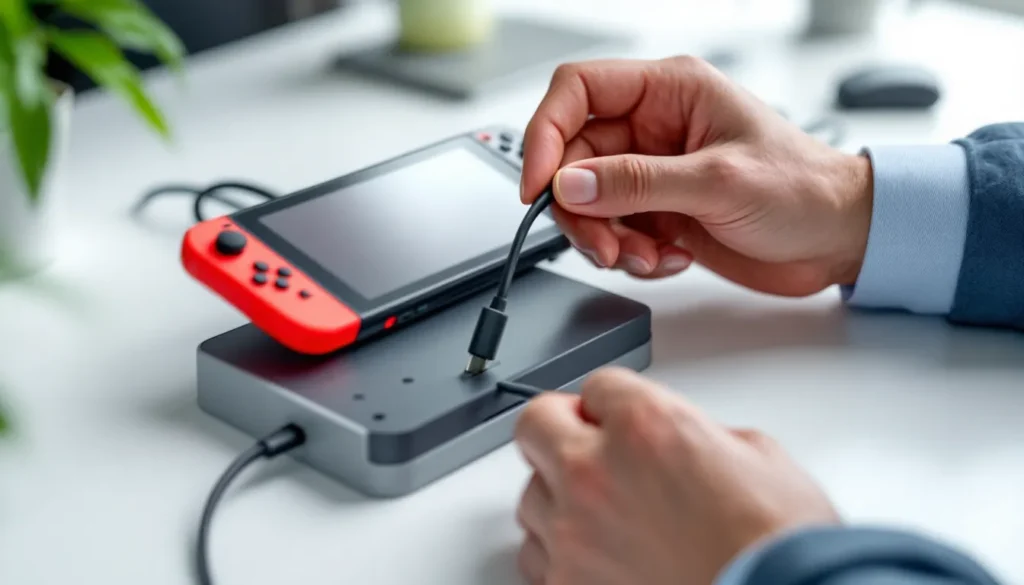
- Connect the USB-C cable: Plug one end of the USB-C cable into your Switch’s charging port. Ensure it seats firmly, you should hear a small click.
- Connect the power adapter: Attach the other end of the cable to your official Nintendo power adapter and plug it into a wall outlet. Alternatively, you can use any USB-C power adapter with Power Delivery support.
- Check for charging: The battery icon in the top-left corner will display a lightning bolt indicator, confirming active charging.
- Continue as needed: You can play while charging via cable, but as mentioned, the charging rate will be slower than docking.
The Switch Lite charges exclusively via this cable method since it doesn’t have a dock option. Everything above applies to the Lite with the exact same process.
Charging The Switch Lite
The Switch Lite is Nintendo’s handheld-focused revision, and it uses the same USB-C charging cable as the original models. The process is identical to the “Charging Without A Dock” section above. The Lite doesn’t dock or connect to external displays, so this is your only charging method.
One advantage: the Lite’s battery capacity is smaller (5,500mAh vs. the original’s 4,310mAh for the early model), so it charges faster in some respects. But, battery longevity practices apply the same way, avoid leaving it plugged in for extended periods after it hits 100%.
Optimal Charging Practices For Battery Longevity
Lithium-ion batteries, which power your Switch, degrade over time. It’s physics, not a flaw. But you can slow that degradation significantly by adopting smart charging habits.
Ideal Charging Habits
Charging between 20% and 80% is the sweet spot for lithium batteries. Sounds strange, but letting the battery fully drain or keeping it perpetually topped off stresses the chemical cells. Nintendo’s official guidance says you shouldn’t leave the console plugged in after it reaches 100%, and that’s solid advice. When you’re done gaming, unplug it.
Consider using partial charge cycles. Instead of draining the battery to 5% and charging to 100%, aim for 30% to 85% in regular use. This might sound inconvenient, but it extends overall battery lifespan by months or even years. For players who game daily, this makes a measurable difference.
Avoid fast-charging scenarios if you can. Yes, some third-party USB-C chargers push higher wattage for faster charging. The trade-off? Battery heat increases, accelerating degradation. Your official Nintendo adapter is optimized to charge safely, use it when possible, especially for overnight charges.
Temperature matters too. Charging in cool environments (around 15–25°C / 59–77°F) is ideal. Warm rooms slow charging and increase battery stress.
Temperature & Environmental Considerations
Lithium batteries have a thermal sweet spot. Charge your Switch when the room temperature is moderate. Avoid charging in direct sunlight, near radiators, or on surfaces that trap heat (like under a blanket). These conditions accelerate battery aging.
If your Switch feels hot while charging, unplug it immediately and let it cool. A warm console during charging is normal, but if it’s too hot to hold comfortably, something’s wrong. This might indicate a defective charger, a damaged battery, or dust blocking ventilation on the dock.
Store your Switch in a cool place when you’re not using it for extended periods. If you’re storing it for weeks or months, keep the battery at around 50% charge. Leaving it completely depleted or fully charged during storage accelerates degradation.
Winter conditions are actually beneficial for battery longevity, cooler ambient temperatures mean your battery stays healthier during charging sessions. Summer storage requires more care.
Using Third-Party Chargers And Accessories
The Switch charging ecosystem is flooded with third-party options. Not all of them are created equal, and some can damage your console. Here’s how to navigate the landscape.
Certified Third-Party Options
Nintendo’s strict standards mean third-party chargers must meet specific requirements to avoid hardware damage. Look for products certified by the USB-C Implementers Forum as USB Power Delivery compliant. These chargers have gone through testing and meet safety standards.
Brand-name manufacturers like Anker, Belkin, and RAVPower produce USB-C PD chargers that work with the Switch. They’re often cheaper than Nintendo’s official adapter, and many players use them without issues. The key differentiator: they output the correct wattage (39–45W depending on your model) and don’t overvolt the console.
Portable power banks with USB-C and Power Delivery support work for charging on the go. A 20,000mAh power bank can fully charge your Switch multiple times, making it ideal for travel or long gaming sessions away from outlets. Make sure the power bank explicitly states USB Power Delivery support, standard USB-C charging without PD might not work.
One thing to keep in mind: third-party docks are less reliable than the official Nintendo dock. Cheap knockoff docks can corrode contacts, cause charging failures, or even short-circuit your Switch. If you want a third-party dock, stick with recognized brands that have positive reviews from gaming communities.
An AC Adapter Nintendo Switch guide covers power solutions in more depth if you’re considering alternatives.
What To Avoid When Charging
Don’t use cheap, no-name USB-C chargers from unknown brands. These often lack proper voltage regulation and can fry your Switch’s charging port or damage the battery. If a charger seems suspiciously cheap, there’s usually a reason.
Avoid charging via computer USB ports, even if they’re USB-C. Standard computer USB-C ports rarely provide the power delivery your Switch needs. You’ll see extremely slow charging, if it charges at all. This is especially true for older laptops.
Never use chargers designed for phones, even if they have USB-C. A phone charger might output 18W, which is below the minimum your Switch expects. Low-wattage charging strains the battery and can cause permanent damage.
Don’t mix proprietary cables. Nintendo’s official cable is designed specifically for the Switch’s charging requirements. Off-brand cables might fit the port but lack proper shielding, leading to voltage inconsistencies.
Stay away from fast-charging protocols designed for laptops or tablets. While the Switch accepts USB-C, it’s not designed for the extreme wattages some high-end chargers push. Stick to adapters in the 39–45W range.
Finally, never leave your Switch plugged into a third-party dock overnight. If there’s any defect in the dock’s voltage regulation, extended charging can damage the battery or circuit board. It might seem paranoid, but it’s a real risk with cheap docks.
Troubleshooting Common Charging Issues
Your Switch isn’t charging, or it’s charging slower than molasses. Before you panic and assume the worst, work through these diagnostics.
Switch Won’t Charge: Diagnosis & Fixes
First, test your cable. Grab another USB-C cable (from a phone, tablet, or laptop) and plug it into your Switch. If it charges with a different cable, your original cable is damaged. If it still won’t charge, move to the next step.
Inspect the charging port on your console. Look for bent pins, corrosion, or debris blocking the connection. Use a small flashlight and peer into the port. If you see dust or lint, a compressed air can might clear it, don’t use metal objects that could damage the pins.
Check your power adapter. Plug the adapter into the wall, then attach your cable. Does the cable get warm? This indicates power is flowing. If it stays room temperature, the adapter is dead and needs replacement.
Try a different outlet. Sometimes the problem is the power outlet, not your console or charger. Plug another device into that outlet to confirm it’s working.
Perform a force shutdown. Hold the power button on your Switch for 15 seconds until it powers off completely. Wait 30 seconds, then try charging again. Sometimes a software glitch prevents charging recognition.
If none of these work, you likely have a hardware failure requiring Nintendo’s repair service. Contact Nintendo’s support team for warranty service.
Slow Charging Problems
Slow charging usually means insufficient power delivery to the battery. The most common cause: you’re using the wrong charger. Verify your power adapter outputs at least 39W. If you’re using a third-party charger, check the specifications on the box or product listing.
Docking while playing significantly slows charging. If you’re actively gaming on a docked Switch, the system throttles charging to prioritize thermal management and performance. This is intentional behavior. Undock the console and let it sit in sleep mode for faster charging.
Temperature affects charging speed. A hot Switch charges slower than a cool one. If the room is warm or the console has been gaming hard, let it cool down before charging. Move it away from direct sunlight or heat sources.
Cable length and quality matter. Extremely long USB-C cables (10+ feet) experience voltage drop over the distance, reducing effective power delivery. Use cables under 6 feet for reliable charging.
A partially damaged cable can cause slow charging without preventing it entirely. If charging is slow with your usual setup but normal with another cable, your cable is degrading and should be replaced.
Dock-Related Charging Issues
The dock’s USB-C port can accumulate dust or debris, blocking connection to your Switch. Clean the inside of the dock gently using a dry, soft cloth. Don’t use liquids or compressed air here, you could push debris deeper into the port.
Verify the power adapter is fully inserted into the dock. It should click into place. If it’s loose, it won’t deliver power, and your Switch won’t charge. Reseat the cable firmly.
Check the dock’s LED indicator. When powered correctly, it should glow (color varies by dock version). No light means the power adapter isn’t delivering electricity. Test the adapter with a cable on another device to confirm it’s working.
The dock can fail if exposed to dust, humidity, or physical damage. If cleaning doesn’t help and the LED doesn’t light up, the dock’s internal circuitry might be damaged. Replacement is your only option.
If your Switch charges fine with a cable but not in the dock, the issue is almost certainly the dock, not your console. This is common for older docks that have been heavily used. Third-party replacement docks are available, though the official dock is recommended for reliability.
Maximizing Battery Life Between Charges
Charging optimally is only half the equation. Reducing how much battery your Switch drains during gameplay extends how long you can play between charges. For handheld gamers and travelers, this is crucial.
In-Game Settings To Reduce Battery Drain
Brightness is the biggest battery hog on any portable device. Dial your screen brightness down to 30–40% in normal indoor lighting, and you’ll notice the battery lasts noticeably longer. In bright outdoor settings, you’ll need higher brightness, but prioritize energy savings when you can.
Frame rate and resolution matter too. Many Switch games offer performance modes (higher frame rate, lower resolution) and handheld modes (balanced settings). In battery-critical situations, switch to handheld mode if your game supports it. Games like The Legend of Zelda: Breath of the Wild or Mario Kart 8 Deluxe benefit significantly from this adjustment, though modern titles often optimize automatically.
Disable background app refresh and notifications. Go to System Settings > Notifications and turn off notification alerts for apps you’re not actively using. Every notification ping consumes battery.
Turn off wireless connectivity when you’re not using it. WiFi and Bluetooth drain battery even when dormant. If you’re playing offline, disable both in the Control Center. For online gaming, keep WiFi on but disable Bluetooth if you’re not using wireless controllers.
Close unused applications. Even minimized apps consume resources. Press the X button on the game you want to exit and fully close it rather than suspending it.
Enable low-power mode if available in your Switch settings (particularly useful on Switch OLED). This reduces performance slightly but extends battery life by 10–15%.
Hardware Tips For Extended Play Sessions
Use a portable battery bank designed for the Switch. Models like the Anker PowerCore deliver consistent USB-C charging while you play, letting you extend sessions indefinitely. Twenty-thousand mAh capacity means multiple full charges.
Played outdoors? Use a sun shade or position yourself so the screen isn’t in direct sunlight. Bright screens drain more power and generate more heat, both reducing battery efficiency.
Ventilation is critical. If you’re gaming in a case or enclosed space, heat builds up, forcing the system to throttle performance and consume more power to cool itself. Keep your Switch in an open, well-ventilated area.
Controls matter. Handheld gaming with Joy-Cons attached uses less battery than wireless controllers because the console doesn’t need to maintain Bluetooth connections. For marathon sessions, prioritize handheld mode.
Temperature optimization goes both ways. A slightly cool console operates more efficiently than a warm one. If your Switch is hot, let it cool before continuing. This prevents thermal throttling that reduces battery efficiency.
Recent gaming articles from Nintendo Life dive deeper into game-specific optimization tips if you’re interested in title-by-title battery strategies.
Final pro tip: plan your charging around your schedule. If you know you’re going to a three-hour gaming session and your battery is at 40%, charge to 100% beforehand. Partial discharge cycles are great for long-term battery health, but they don’t help during specific events or travel.
Conclusion
Charging your Nintendo Switch correctly isn’t complicated, but knowing the distinctions between dock charging, cable charging, and the hardware variations across models prevents expensive mistakes. Use your official Nintendo adapter, charge between 20–80% when possible, and avoid leaving your console plugged in after it hits full capacity. Third-party chargers can work reliably if they’re USB Power Delivery certified, but cheap knockoffs aren’t worth the risk.
When troubleshooting fails, and sometimes it will, remember that Nintendo offers repair services. Battery degradation is inevitable after 3–5 years of regular use, but proper charging habits extend that timeline significantly. For competitive players and daily gamers, this matters. A well-maintained Switch battery can reliably last through hundreds of gaming sessions without noticeable degradation.
Your charging setup is worth revisiting periodically. If you’re using an old third-party dock or a degraded cable, replacing them now saves headaches later. The investment in a quality USB-C power bank or replacement cable is trivial compared to the cost of a new Switch or professional repair. Treat your hardware with basic care, and it’ll reward you with years of reliable portable gaming.
The current console ecosystem, Switch, Switch OLED, and Switch Lite, all standardize on USB-C, making charging more flexible than it was on older Nintendo hardware. Take advantage of that compatibility. Keep an extra certified USB-C cable in your travel bag, maintain your official dock, and pay attention to temperature. These simple habits ensure your Switch stays charged and ready whenever you are.