
Table of Contents
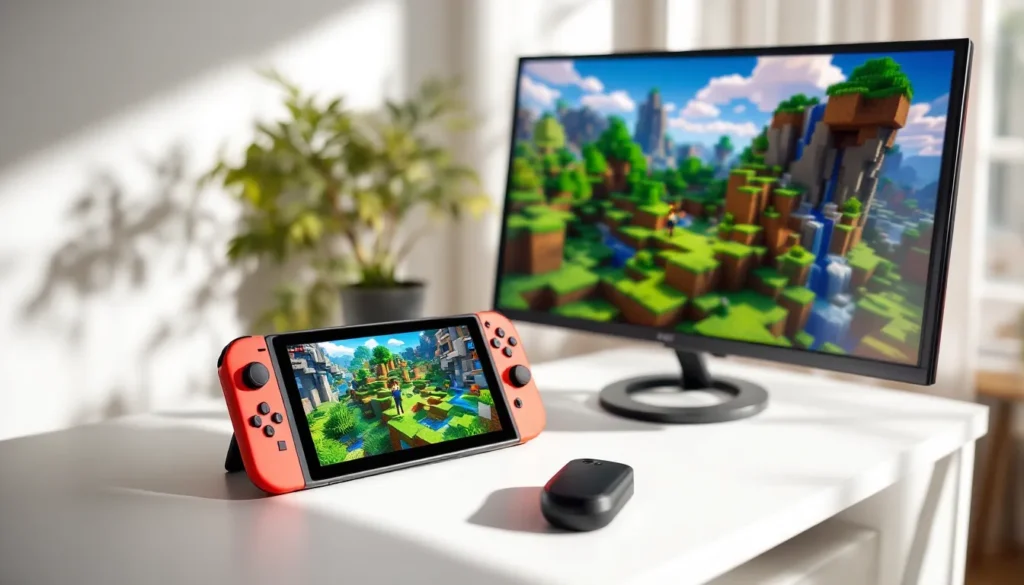
ToggleWhether you’re commuting to work, lounging on the couch, or taking a break at school, Minecraft on Nintendo Switch brings the block-building magic to your pocket (or docked to your TV). But here’s the thing: the Switch version isn’t identical to what you’d play on PC or other platforms. If you’re wondering whether you can actually play Minecraft on Nintendo Switch, and what that experience looks like, you’re in the right place. We’re breaking down everything from purchase details to performance quirks, so you know exactly what you’re getting into before you drop your cash.
Key Takeaways
- Yes, you can play Minecraft on Nintendo Switch with full access to survival, creative, and adventure modes, and the game remains one of the platform’s best-selling titles since its 2017 release.
- Minecraft on Nintendo Switch runs Bedrock Edition, which enables cross-platform multiplayer with Xbox, PC, PlayStation, and mobile devices—a feature unavailable in Java Edition.
- The Switch version operates at 30 FPS and 720p in handheld mode or 1080p docked, with a lower render distance than PC, but this solid performance supports hundreds of hours of gameplay.
- You’ll need 2–3 GB of storage space and a Nintendo Switch Online subscription for multiplayer, though single-player modes work offline without a subscription.
- While traditional mods aren’t supported on Nintendo Switch, the Marketplace offers cosmetic packs, resource packs, and world templates to enhance your experience.
- Minecraft on Switch excels at portability—take your worlds anywhere—making it ideal for casual players and families who prioritize convenience over maximum graphical performance.
Yes, You Can Play Minecraft on Nintendo Switch
The short answer: absolutely. Minecraft has been on Nintendo Switch since 2017, and it’s still going strong in 2026. Over the past nine years, the game has evolved significantly with regular updates, performance tweaks, and new content drops. The Switch isn’t the most powerful console out there, but it’s more than capable of running Minecraft without major headaches.
You’ve got full access to core survival and creative modes, the ability to build elaborate structures, explore procedurally generated worlds, and mess around with friends in multiplayer sessions. Thousands of Switch players are actively mining, crafting, and creating right now. The port is solid enough that it’s become one of the best-selling games on the platform, sitting comfortably in the Switch library alongside titles like The Legend of Zelda and Animal Crossing.
The real question isn’t whether you can play Minecraft on Switch, it’s whether it’s the right choice for your specific situation. Performance expectations, world size, mod access, and multiplayer setup all differ from other versions. Those details matter, and we’ll get into them in the sections below.
Which Version of Minecraft Is Available on Nintendo Switch?
Bedrock Edition vs. Java Edition
Switch runs Bedrock Edition, not Java Edition. This distinction matters more than it sounds. Bedrock is the modern, unified version of Minecraft designed to run across multiple platforms, Switch, Xbox, Windows 10/11, mobile, and PlayStation. Java Edition is the original PC version, the one hardcore players and modders gravitate toward.
Bedrock Edition on Switch means you’re getting cross-platform multiplayer compatibility. You can play with friends on Xbox, PC (Windows), PlayStation, and mobile devices through the same lobby system. Java Edition can’t do that, it’s locked to PC and uses different servers entirely.
On the flip side, Java Edition has a massive modding community and features like the custom content creation studio that Bedrock lacks (though Bedrock’s Marketplace has made progress here). If deep modding and server customization are your priorities, Java is the gold standard. But for convenience and cross-platform play, Bedrock, and hence the Switch version, wins.
What’s Included in Minecraft for Nintendo Switch
When you buy Minecraft on Switch, you get the full vanilla game experience: survival mode, creative mode, and adventure mode. You’re not paying for a lite version or a mobile knockoff. The base game is the same as what Bedrock players get on other platforms.
You’ll have access to the latest features as of 2026, including recent content updates, biome overhauls, and balance changes that have rolled out over the past few years. The Caves & Cliffs update, for example, completely redesigned underground exploration and is fully playable on Switch. The Wild update brought new mobs, biomes, and mechanics. These major updates are free once you own the game.
The Marketplace is also available on Switch, which lets you purchase cosmetic packs, skins, and world templates with real money. These are optional, you don’t need them to enjoy the game, but they add cosmetic variety if you want to customize your experience. There’s also free content occasionally released, so you’re not forced into microtransactions.
How to Purchase and Install Minecraft on Your Switch
Buying from the Nintendo eShop
Getting Minecraft on your Switch is straightforward. Head to the Nintendo eShop on your console or online via Nintendo’s website. Search for “Minecraft” and you’ll find the official listing published by Microsoft (which owns Mojang, the developer). As of 2026, the price typically hovers around $20–27 USD depending on your region and any active promotions.
You’ll need a Nintendo Account and a valid payment method (credit card, debit card, or Nintendo eShop gift card) linked to your account. If you’re buying a gift card at retail, you can redeem it via the eShop without needing a credit card on file. Once you’ve purchased the game, it’s tied to your account and can be played on any Switch console you sign into.
If you’re hesitant about spending full price, keep an eye on eShop sales. Nintendo occasionally discounts Minecraft during major sale periods, though deep discounts are rare since it’s a perennial bestseller. During holiday seasons or anniversary events, you might see 15–20% off, which is better than nothing.
System Requirements and Storage
Here’s the technical side: Minecraft on Switch works on all Switch models, the original Switch, Switch Lite, and the newer Switch OLED. No compatibility issues there. You’ll need an active Nintendo Switch Online subscription to play multiplayer with friends, though single-player survival and creative modes work without it (as of the current generation: always check your subscription status to be sure).
Storage-wise, the base game takes up roughly 2–3 GB of internal storage or expandable microSD card space. If you’re running the Switch with just the internal storage, you’ve got 32 GB total, and Minecraft will take up about 6–9% of that. It’s manageable, but if you’ve already installed several other games, you might need to grab a microSD card (64 GB or larger is recommended for any Switch owner). The game updates periodically, and these patches can add a few hundred megabytes over time, so plan accordingly.
Internet connection is required to download the initial game and apply updates, but once everything’s installed, you can play single-player offline without a problem. Multiplayer absolutely requires an active internet connection and Nintendo Switch Online subscription.
Gameplay Features and Performance on Nintendo Switch
Resolution, Frame Rate, and Graphics
Here’s the reality check: Minecraft on Switch runs at 720p resolution in handheld mode and 1080p in docked mode. Frame rate holds at 30 FPS across the board. Compare that to PC or next-gen consoles, which can push 60 FPS or higher, and you’ll notice the difference in fast-paced gameplay.
That 30 FPS cap is a constraint of the Switch’s hardware. It’s not a bug: it’s the ceiling. Smooth? Yes. Comparable to a high-end rig? No. But here’s the thing: millions of players have been grinding on Minecraft at 30 FPS on Switch without issue. The game was designed around this limitation, so it feels native and fluid within that context. If you’re coming from PC running at 144 FPS, there’ll be an adjustment period. If you’ve never played Minecraft at higher frame rates, you won’t even notice.
Graphics are simplified compared to PC with high settings. Chunk render distance is lower (typically around 6–8 chunks instead of 16+), water and lighting effects are less elaborate, and particles are toned down. Dense redstone contraptions or massive farms with hundreds of entities can cause stutters. The Switch version prioritizes stability over visual fidelity, which is a sensible trade-off for a portable console.
Daylight cycle, weather, seasons, and seasonal biomes all exist on Switch. Texture quality is decent: details are clear enough that you can see what you’re building. It won’t blow your mind, but it gets the job done.
Multiplayer and Cross-Platform Play
Multiplayer on Switch works in two flavors: local multiplayer and online multiplayer.
Local multiplayer lets up to four players connect on the same Switch console using separate Joy-Cons. This is great for couch co-op with family or friends in the same room. Split-screen isn’t full vertical/horizontal, it’s more of a dynamic camera system that follows active players, but it works fine for local sessions.
Online multiplayer connects you to friends on other Switch consoles and players on Xbox, Windows, PlayStation, and mobile devices (Android and iOS). This cross-platform functionality is massive. You create a Realm (Microsoft’s subscription-based multiplayer world service), invite friends across platforms, and everyone meets in the same world. A Realm subscription costs about $8 USD per month, but it’s optional, you can also join friend-hosted worlds directly if their console is online.
Switching between servers is seamless thanks to Bedrock’s unified architecture. No Java server files, no complicated port forwarding. The downside? You can’t rent private servers the way Java players can. You’re stuck with Realms or friend sessions, which limits scaling for larger communities.
Latency can be an issue in lag-heavy situations, especially in handheld mode on weaker Wi-Fi. Docked mode with a wired connection (via USB adapter) is more stable. Most casual play is fine, but competitive PvP or massive multiplayer builds benefit from better connection stability.
Controls and Accessibility on Nintendo Switch
Default Controls and Customization Options
Minecraft on Switch uses a remapped control scheme adapted from the keyboard and mouse layout of PC. It takes adjustment if you’re used to PC controls, but it becomes intuitive fast.
Default Joy-Con Layout:
- ZR: Attack/Mine
- ZL: Mine/Place block (alternate mode)
- RT/LT: Interact/Place
- Y: Drop item
- X: Crafting menu
- A: Jump
- B: Sneak/crouch
- D-Pad: Hotbar selection
- Left Stick: Movement
- Right Stick: Camera/look around
The controls are fully remappable through the Switch settings menu. You can swap buttons, invert camera axes, and adjust stick sensitivity. If the default setup feels clunky, you can customize it to match your preference.
There’s no motion control aiming in standard mode, but the stick-based targeting feels responsive enough for placement and combat. Handheld mode uses smaller Joy-Cons, which some people find cramped during long sessions, but it’s playable.
Accessibility features include adjustable UI text size, colorblind modes, and button remapping for players with limited mobility. The game doesn’t have full subtitle support yet (though Minecraft Java does), but Bedrock continues to improve accessibility year over year.
Handheld vs. Docked Mode Performance
Both modes run at 30 FPS, but there are subtle differences in experience.
Handheld Mode: 720p, smaller screen (6.2 inches on standard Switch), easier to take anywhere, Joy-Cons feel cramped on longer play sessions. Thermal throttling can happen if the console gets too warm during extended play, but this is rare and usually only occurs in hot environments. Battery life is around 4–6 hours depending on your Switch model and brightness settings.
Docked Mode: 1080p on your TV (if your TV supports it: older sets max out at 720p), larger screen, Joy-Cons feel better separated or you can use a Pro Controller, better thermal performance because the console isn’t insulated by your hands. This is the preferred setup for marathon sessions or multiplayer couch play.
Docked mode is objectively more comfortable for long-term play. The larger screen makes building and reading text easier, and you can spread out your controls. Handheld mode wins for portability, which is the entire point of the Switch. If you’re debating between docked and handheld for Minecraft, docked is better for immersion and comfort, but handheld is better for flexibility.
Tip: If you play a lot of Minecraft on Switch, a Pro Controller ($70) is worth considering. It feels premium, has excellent grip, and eliminates Joy-Con drift concerns (though Joy-Cons are repairable). But it’s not necessary, Joy-Cons are functional.
Worlds, Mods, and Content on Switch
World Size and Limitations
Worlds on Switch are smaller than on PC. The playable area is restricted to a finite boundary, typically around 60 million blocks × 60 million blocks (compared to PC’s much larger or virtually unlimited worlds depending on version). This sounds enormous until you actually explore, most players never hit this limit because it takes absurd amounts of time to reach the world border.
For practical purposes, the world size doesn’t matter. A single Switch world can comfortably accommodate dozens of hours of exploration, building, and resource gathering. You won’t run out of space unless you’re deliberately trying to fill the entire world.
World files are saved locally to your Switch’s storage, so there’s no cloud sync issue. If your Switch breaks, your worlds are tied to that device unless you’ve backed them up via cloud saves (which requires a Nintendo Switch Online subscription). Always enable cloud backup if you’re worried about data loss, it costs nothing extra and saves your progress.
Multiple worlds can exist on a single Switch, limited only by storage space. Each world is independent, so you can have a survival world, a creative world, and a Realm all running simultaneously without conflict.
Add-Ons, Resource Packs, and Marketplace Content
Mods in the traditional sense (code modifications) aren’t supported on Switch. If you’re expecting the sprawling mod ecosystem of Java Edition, Minecraft Forge, OptiFine, technical mods, those don’t exist on Bedrock Switch.
What is available are Marketplace add-ons. These are cosmetic and content packs made by creators and sold through the in-game shop. Think skins (character appearances), resource packs (texture overhauls), and world templates (pre-built structures or themed worlds). Prices range from $2–8 USD per pack. None of these are mandatory, vanilla Minecraft is fully playable without spending extra.
Resource packs let you change how the game looks. Instead of the default blocky textures, you can apply realistic textures, anime-style packs, or cartoon aesthetics. These are purely visual and don’t affect gameplay. A decent resource pack might cost $5–7 on the Marketplace, or you can hunt for free packs online (though the official Marketplace is the safest route).
Behavior packs are more powerful, they can tweak mob behavior, add new items, or adjust game mechanics. Again, these are Marketplace-exclusive on Switch, not community-created mods. Microsoft curates them, so quality and balance are generally solid.
If you’re craving heavy modding and total customization, Switch isn’t your platform. Stick with Java Edition on PC or Bedrock on Windows PC. But if you want a solid vanilla experience with optional cosmetic enhancements, the Switch Marketplace covers it nicely.
Nintendo Switch vs. Other Platforms: A Comparison
Switch vs. PC and Console Versions
Let’s be direct: PC is the premium Minecraft experience. Java Edition on PC offers unlimited modding, 60+ FPS, massive render distances, and an enormous community of content creators. If you’re a streamer, a technical player, or someone who wants total control over the game, PC Java is the gold standard.
Bedrock on Windows PC (through the official launcher or Game Pass) is also stronger than Switch. Same 30 FPS cap if you want parity, but you can push to 60+ FPS, adjust render distance freely, and enjoy higher graphical fidelity. Windows Bedrock also gets updates alongside Switch, so feature parity is there, but the technical ceiling is higher.
PlayStation and Xbox versions of Bedrock are more comparable to Switch. PlayStation 5 and Xbox Series X run Minecraft at up to 60 FPS with ray-tracing support (optional), while last-gen consoles (PS4, Xbox One) hover around 30 FPS. The Switch is the lowest-end platform in terms of raw power, reflected in its chunk render distance and lower resolution.
Here’s what the Switch does offer that others can’t: portability. You can literally carry Minecraft in your pocket. No PC laptop, no docking PlayStation. Just grab your Switch and play anywhere. For casual players who value convenience over cutting-edge performance, this is a massive selling point. Millions of gamers trade graphical fidelity and frame rate for the ability to play anywhere, anytime.
Cross-platform play (Switch to Xbox, PlayStation, PC, mobile) is also a huge advantage of Bedrock. If you want to build with friends on different platforms, Switch Bedrock makes that seamless. Java players on PC are locked to other Java players, a significant limitation if your friends are on console.
Switch vs. Mobile Minecraft
Minecraft Pocket Edition on iOS and Android is more limited than Switch. Worlds are smaller, graphics are simpler, and the touch-based controls feel awkward compared to physical buttons. Mobile is great for casual, pick-up-and-play sessions, quick creative builds or survival on the go.
But if you’re comparing feature-parity and play time, Switch wins. A full survival session on mobile feels cramped and tiring because of the touchscreen controls. On Switch, you’ve got physical buttons, a larger screen, and better ergonomics. Worlds are bigger, and performance is more stable.
Mobile is cheaper (Pocket Edition is $7, versus $20+ for Switch), so if budget is your main concern, mobile works. But if you have access to a Switch and plan to invest more than a few hours, Switch is the better experience. The controls alone make it a significant step up.
Cross-platform multiplayer is available between mobile and Switch (both Bedrock), so you can play together even if friends are on different devices. That interoperability is valuable, especially for families with mixed device ecosystems.
Common Issues and Troubleshooting
Performance Lag and Crashing
Lag spikes happen on Switch, especially in heavily built-up worlds with lots of redstone machinery or entity-heavy farms. A farm with 500+ animals in one chunk, for example, will cause frame drops or stuttering. This isn’t a Switch-specific flaw, even PC struggles with that level of entity density, but Switch’s lower specs make it more obvious.
Quick fixes:
- Reduce render distance in world settings. Lower distances mean fewer chunks to process, freeing up resources.
- Delete or move entity-heavy builds away from your main base. Spread farms across multiple chunks.
- Lower particle settings in graphics options. Fewer visual effects = less processing overhead.
- Restart the game if lag becomes unbearable. This clears the cache and often restores smooth performance.
- Update your game to the latest patch. Optimization fixes roll out frequently.
Crashes (the game completely closes) are less common but can happen due to corrupted world files or software glitches. If you’re crashing consistently:
- Ensure you’re running the latest game version (check the eShop for updates).
- Try creating a new test world to isolate whether the crash is world-specific or system-wide.
- If a specific world crashes, delete it and restore from a cloud save if you have one.
- As a last resort, uninstall and reinstall Minecraft. This clears cached data that might be corrupted.
Cloud saves are your safety net. Enable them in system settings so your worlds are backed up automatically. If anything goes wrong, you can restore to a previous state. It’s not perfect (there’s a delay between in-game saves and cloud sync), but it’s better than losing days of progress.
Multiplayer Connection Problems
Online multiplayer hiccups typically stem from network issues, not the game itself. Here’s how to troubleshoot:
Can’t find or join friends:
- Ensure both players are connected to the same Wi-Fi network or have stable internet.
- Check that you’re both logged into Nintendo Accounts and have active Nintendo Switch Online subscriptions.
- One player should create the world and explicitly invite the other through the Friends list. Open Minecraft, start a world, press + (Plus), and add friends from the invite menu.
- Realms bypass some of this, if you have a Realm subscription, just invite friends and they’ll see the world in their Realms list.
Lag during multiplayer:
- Switch to a wired connection if you’re docked. Use a USB Ethernet adapter (Amazon has plenty for $15–25). Wi-Fi introduces more latency, especially on crowded networks.
- Reduce render distance to ease network load.
- Close other apps or downloads on your Switch. Background downloads or app updates will compete for bandwidth.
- If hosting locally (from your console), ensure no one else in the world is downloading or streaming on the same network.
Realm or hosted world won’t load:
- Sign out of your Nintendo Account and sign back in. This refreshes your session.
- Restart your Switch completely (power off, wait 10 seconds, power on).
- Check Microsoft’s official status page for Minecraft Realms downtime. Occasional maintenance happens.
Multiplayer on Switch is solid for casual play. Don’t expect lag-free competitive PvP: the latency and 30 FPS cap make fast-paced combat sketchy. But for building, exploring, and casual survival with friends, it’s reliable.
Tips and Tricks for the Best Switch Minecraft Experience
Optimization Settings for Better Performance
Out of the box, Minecraft on Switch is optimized reasonably well, but you can squeeze more smoothness by tweaking a few settings:
In-Game Video Settings:
- Render Distance: Drop from max (8 chunks) to 6 or even 5 chunks. You’ll lose sight distance, but the FPS gain is noticeable. In survival, you rarely need to see 8 chunks away.
- Max Framerate: Leave this at 30 FPS cap. There’s no point raising it since the Switch can’t exceed 30 FPS anyway.
- Particles: Set to “Minimal” or “Decreased” if you’re experiencing lag. Effects like explosions and spell particles are visually nice but taxing.
- Fancy Graphics: Toggle this off. Fancy mode (better foliage, reflections) costs FPS. Simple mode is snappier.
- Brightness: Max this out if you’re playing handheld in bright rooms. It doesn’t affect performance but improves visibility.
General Best Practices:
- Close background apps. Having Discord, YouTube, or other Switch apps running drains resources. Fully close them before heavy play sessions.
- Ensure good ventilation. The Switch can thermally throttle if it gets too hot. Play in a cool environment and don’t cover vents.
- Use a Pro Controller if possible. It’s not mandatory, but it’s more comfortable and reduces hand fatigue during long sessions.
- Play docked with a wired connection for multiplayer. This eliminates Wi-Fi latency and provides better thermal performance.
None of these tweaks are magical. You’re not going to hit 60 FPS on a Switch. But they’ll keep your experience consistently smooth at 30 FPS, which is what matters.
Essential Beginner and Advanced Strategies
For Beginners:
Start in Creative mode if you’ve never played Minecraft before. You’ll learn the controls, building mechanics, and crafting system without pressure. Once you’re comfortable, jump into Survival on Easy or Normal difficulty.
Essential early-game steps:
- Punch trees to get wood.
- Craft a crafting table and place it.
- Use the crafting table to make a wooden pickaxe.
- Mine stone to upgrade your pickaxe.
- Build a shelter before nightfall (mobs spawn in darkness).
- Find coal or make charcoal (wood in a furnace) for torches.
- Light your shelter with torches to prevent mob spawns.
Don’t rush to find diamonds on day one. Gather resources methodically, build a functional base, and expand from there. Minecraft Game for Nintendo Switch: Unleash Your Creativity Anywhere explores deeper creative potential for those wanting to showcase their builds.
For Advanced Players:
Switch limits your technical possibilities (no command blocks, limited redstone complexity), but there’s still room for optimization:
- Establish a central hub base where you can access multiple farms and storage. Avoid sprawling, disconnected builds across the map.
- Design efficient mob farms that don’t cause lag. Spread out entity-heavy mechanisms instead of concentrating them in one chunk.
- Use multiplayer coordination. In Realms or friend worlds, divide tasks, one player farms, another builds, another explores. It’s faster than solo and more fun.
- Experiment with resource packs from the Marketplace. A good texture pack can make your survival world feel fresh without changing gameplay.
- Push the creative boundaries. Some of the most impressive Minecraft builds are pure terraforming and architecture. Terrain shaping, landscaping, and large-scale projects showcase the Switch’s creative potential.
Minecraft is a sandbox. There’s no single “right” way to play. Whether you’re grinding for diamonds or building a pixel-art cathedral, the experience is yours to shape. The Switch version might not be the absolute most powerful platform, but it’s more than capable of delivering countless hours of engaging gameplay.
Conclusion
Minecraft on Nintendo Switch is absolutely worth playing if you value portability, cross-platform cooperation, and a solid vanilla experience. You get the full game, regular free updates, and the ability to play with friends across multiple platforms. The 30 FPS cap and lower render distance are real limitations compared to PC or newer consoles, but they’re not dealbreakers for most players.
The Switch version excels where other platforms can’t: in your hands, on your commute, on a plane, or anywhere else you want to take it. For casual players and families, that flexibility is invaluable. For competitive or heavily modded experiences, you’ll want Java Edition or a high-end PC setup.
If you’re on the fence, the $20–27 entry cost is reasonable for the hundreds of hours you could sink into a single world. Gaming outlets like IGN and GameSpot have consistently praised Minecraft’s staying power across platforms, and the Switch port holds up well against those reviews. Grab it from the Nintendo eShop, start mining, and join millions of players who’ve already discovered why Minecraft remains one of the greatest games ever made.