
Table of Contents
ToggleYes, you absolutely can download games on Nintendo Switch, and it’s one of the console’s best features. Whether you’re a casual player grabbing indie gems or a competitive gamer stocking up on the latest AAA releases, the Switch’s digital ecosystem has grown massively since 2017. The Nintendo eShop is your gateway to hundreds of titles, free-to-play games, demos, and exclusive digital deals. In 2026, with the Switch’s library hitting over 10,000 games, knowing how to navigate downloads efficiently, manage storage smartly, and troubleshoot common issues isn’t just helpful, it’s essential. This guide walks you through everything you need to know about downloading games on your Switch, from account setup to storage expansion.
Key Takeaways
- You can download games on Nintendo Switch through the Nintendo eShop, with over 10,000 titles available including AAA games, indie gems, and free-to-play options.
- A microSD card (512GB or larger) is essential for managing storage, as the Switch’s 32GB internal storage fills quickly once you install multiple games.
- Downloading games requires a Nintendo Account, active Wi-Fi connection, and a payment method, but the process is straightforward and games install in the background.
- Free-to-play games and demos offer zero-cost ways to try titles before purchasing, making it easy to discover new genres without financial risk.
- Digital downloads provide instant access and convenience, but physical cartridges offer ownership and resale value—many players use both based on their gaming habits.
- Common download issues like slow speeds or failed downloads are usually fixed by moving closer to your router, restarting your Switch, or checking your internet connection.
Understanding Nintendo Switch Game Downloads
The Nintendo Switch supports three ways to play games: cartridge-based physical copies, digital downloads, and subscription services like Nintendo Switch Online. Digital downloads have become the dominant method for most players, they’re instant (after install), take up less shelf space, and often go on sale through the eShop.
When you download a game on Switch, you’re getting the full software installed to your console’s internal storage or an expanded microSD card. Unlike streaming services, these are permanent additions to your library as long as your account remains active. Each game varies in size: indie titles might be under 2GB, while AAA games like The Legend of Zelda: Breath of the Wild take up 13.4GB, and The Witcher 3 demands 32GB.
Downloading is linked to your Nintendo Account. Whoever owns the account that purchased the game can play it on any Switch console registered to that account. This flexibility is one reason digital has become so popular, you’re not locked to one physical cartridge.
The process is straightforward: connect to Wi-Fi, browse the eShop, purchase or claim free games, and let the console handle installation. There are no hidden downloads or complicated verification steps like you might find on PC platforms. For most players, the download experience on Switch is frictionless.
How To Download Games on Nintendo Switch
Using The Nintendo eShop
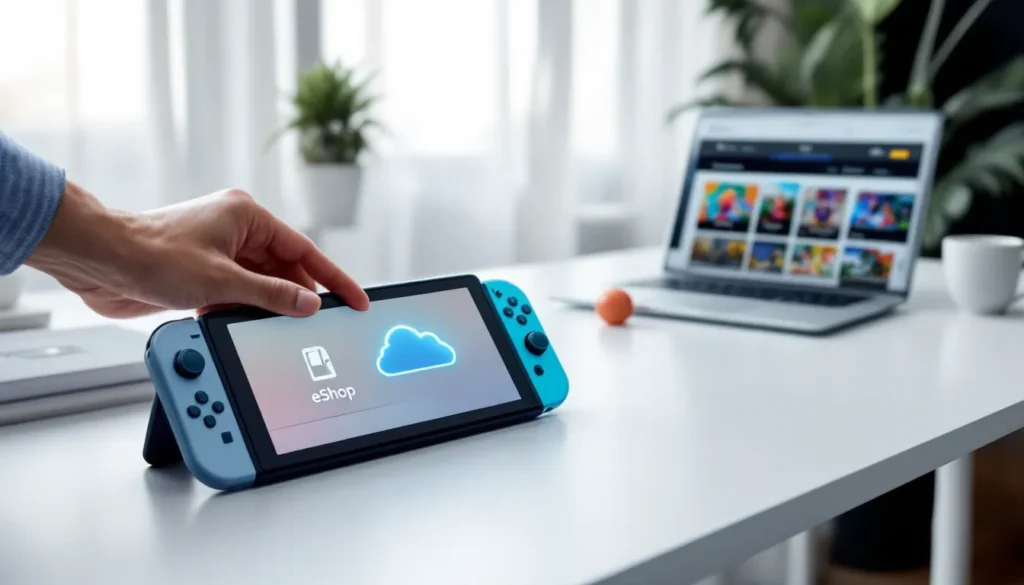
The Nintendo eShop is your one-stop hub for all digital content on Switch. You’ll find it as a shop icon on your home screen. Once you open it, you can browse by category, search by title, check trending games, or explore curated lists. The interface is clean and designed for quick navigation, you won’t be digging through menus for long.
Searching for a specific game is the fastest route. Type the name, and the eShop returns exact matches and similar titles. You can also filter by price (free, under $20, full price), release date, and genre. Wishlist functionality lets you flag games you’re interested in so you don’t forget about them during sales.
Account Requirements and Setup
Before downloading anything, you need a Nintendo Account. This is separate from your Switch profile. A single Switch can have multiple profiles, but only one Nintendo Account per profile. Here’s what you need:
- A Nintendo Account (free to create at Nintendo’s account page)
- Your account linked to your Switch profile
- A payment method on file (credit card, debit card, or Nintendo eShop credit)
- An active internet connection (Wi-Fi: the Switch doesn’t have ethernet out of the box)
Set up is simple: go to System Settings, navigate to Users, select your profile, and link your Nintendo Account. Once done, that account becomes the “primary user” and can download and play games on that console. Secondary profiles on the same Switch can also play games purchased by the primary account, this is how families share game libraries.
If you’re upgrading from an older Switch, you can transfer your account and games to your new console. This process takes 15-30 minutes but ensures all your downloads follow you.
Purchasing and Installing Games
Once you’ve found a game, select it to see price, description, screenshots, reviews, and file size. Hit “Purchase” or “Download” (free games) to proceed. You’ll be prompted to confirm the purchase and select your payment method.
After purchase, the download begins automatically if you’re connected to Wi-Fi. The console will show a download progress indicator. You don’t have to wait for it to finish, you can close the eShop and continue using your Switch while the game installs in the background. Installation times vary wildly based on file size and internet speed. A 1GB indie game might take 2-3 minutes on decent Wi-Fi, while a 30GB AAA title could take 30+ minutes.
Your digital library appears under “Your Games” on the home screen once purchased. Even if it’s still downloading, you can see it there. Large games show remaining download time, which helps with planning your gaming session.
Nintendo Switch Game Download Storage and Management
Internal Storage Limitations
The Nintendo Switch comes with 32GB of internal storage, but Nintendo’s system uses about 2-3GB for its own software. In real-world terms, you’re working with roughly 29GB usable space. That sounds like plenty until you try to install three AAA games.
Here’s the math: Zelda: Breath of the Wild (13.4GB) + Mario Kart 8 Deluxe (5.4GB) + Splatoon 3 (3.6GB) = 22.4GB. You’ve just filled 77% of your internal storage with three games. Add a few indie titles or seasonal game updates, and you’re out of room.
When internal storage fills up, new downloads fail with an error code. You can’t install partial games and finish them later, the console needs the full size available before it begins downloading.
Expanding Storage With MicroSD Cards
The solution is a microSD card. The Switch supports microSD, microSDHC, and microSDXC cards up to 2TB (though 1TB cards are the practical maximum you’ll find). A 512GB card costs $30-50 and will hold roughly 15-20 AAA games or 100+ indie titles. Most players opt for 512GB or 1TB.
Installation is ridiculously easy: power off your Switch, locate the microSD slot on the back (beneath the kickstand), slide the card in, and power on. That’s it. Your console immediately recognizes the card and uses it as expanded storage. Games automatically install to the microSD if internal storage is nearly full, or you can manually manage where each game lives through System Settings.
Not all microSD cards perform equally. Brands like SanDisk, Kingston, and Samsung are reliable. Avoid no-name ultra-cheap cards, slower read/write speeds can cause hitches during gameplay or longer loading times. Look for cards rated for at least U3 (fast data transfer) speed class.
If you’re planning to download lots of games, a microSD card is mandatory, not optional. It transforms your Switch from a console that holds 5-6 AAA games into one that holds your entire library.
Free-To-Play Games and Demo Downloads
Popular Free Games Available on Switch
The Nintendo eShop has a robust free-to-play section. You can download and play these games indefinitely without spending a dime. Quality varies, some are premium experiences, others are designed around paid cosmetics and battle passes, but there’s genuine variety.
Popular free titles include Fortnite, Apex Legends, Warframe, Pokémon Unite, and Splatoon 3 (for Nintendo Switch Online members). Fighting games like Super Smash Bros. Ultimate also have free-to-play lite versions.
Free games are perfect for trying out a new genre or discovering hidden gems without financial risk. Many free-to-play titles earn millions from cosmetic purchases, so developers support them actively with seasonal content and balance patches. Searching “Free” in the eShop filters everything available at zero cost.
Downloading and Playing Game Demos
Demos are another way to test games before committing. They’re smaller, limited-content versions that give you a feel for gameplay, controls, and story. Some demos have time limits (you can play for 2 hours) or level caps. Others are full vertical slices of the finished game.
Nintendo released a dedicated “Demo” section in the eShop to make finding them easier. Searching for a game’s title often returns the demo option alongside the full purchase. Download it, play it for free, and if you love it, buying the full version is usually just one click away. Progress doesn’t carry over, your demo save stays separate from your full game save, so there’s no penalty for experimenting.
Demos are especially valuable for trying niche games or titles you’ve never heard of. Instead of buying blindly, you’re getting a risk-free preview. Developers benefit too, strong demo engagement leads to higher conversion rates and sales data they can use for marketing.
Digital vs. Physical Games: What’s Right for You
This is the eternal console debate. Both have merit.
Digital games are instant. Once downloaded, you play immediately, no inserting cartridges, no physical storage clutter. You can preload games a few days before release and play at midnight. Sales happen regularly on the eShop (major retailers often match prices). Digital also means no risk of cartridge damage, and you can swap between games without touching your Switch. If a game goes “unsupported” or delisted from the eShop, you keep your license and can redownload it anytime from your library.
The downside? You’re locked into the digital ecosystem. If your account gets compromised or Nintendo ever discontinues online services, you lose access. Digital games also can’t be resold or traded, you own a license, not the physical cartridge. Resale value is zero.
Physical games let you own the cartridge. You can trade, sell, or lend them. Cartridges don’t rely on internet or account access, plug it in and play. If the eShop vanishes tomorrow, your physical copies still work. They’re also cheaper secondhand: older Switch games regularly sell for $10-20 used versus $40-60 digital.
The tradeoff is less convenience. You need shelf space, cartridges take a beat to load (marginally slower than digital), and you can’t swap mid-session without physically changing cartridges. Games you care about long-term tend to be physical: multiplayer games you’ll uninstall in six months are better digital.
Many players split the difference: digital for live-service games, indie titles, and impulse purchases: physical for single-player narrative games they plan to keep. It’s a smart middle ground that maximizes convenience and value.
Common Download Issues and Troubleshooting
Slow Download Speeds
Download speeds on Switch are limited by Wi-Fi quality, not the console itself. The Switch maxes out around 40-50 Mbps, which is fine for most home networks. If your downloads are crawling (under 5 Mbps), the issue is almost always your Wi-Fi.
First fix: move your Switch closer to your router. Wi-Fi signal strength drops with distance and through walls. A 5-foot move closer can double your speed. Second: restart your router. Power cycle it by unplugging for 30 seconds, then plug it back in. This clears temporary connection issues.
If that doesn’t help, check if other devices are hogging bandwidth. Streaming Netflix in 4K, running Zoom calls, or downloading files on your PC can starve your Switch. Pause those activities temporarily, then try the download again.
For chronic slow speeds, your router might be outdated or your ISP is throttling you. A newer Wi-Fi 6 router can help, but that’s a bigger investment. As a shortcut, download guides on gaming setups offer deeper troubleshooting if you want to optimize your entire gaming network.
Failed Downloads and Error Codes
Downloads occasionally fail with error codes. The most common are:
- Error 2016-0247: Connection lost. Restart your download from “Your Games.”
- Error 2110-1794: Storage is full or corrupted. Delete a game or restart your Switch and try again.
- Error 2162-0002: Account or payment issue. Check your payment method in Account Settings.
General fix for any download error: restart your Switch entirely (not sleep mode, a full power-down). Most errors clear after a restart. Then retry the download. If it fails again, check your internet connection by going to System Settings > Internet > Test Connection.
If errors persist, uninstall the problem game and redownload from scratch. This sometimes fixes corrupted installation files. You won’t lose your save data, that’s stored separately.
Storage and Space Problems
This deserves emphasis: your Switch must have enough free space to download a game before it begins. If you have 20GB free and try to download a 30GB game, it’ll fail. The console is strict about this.
When storage is full, you need to delete games you’re not playing. Go to System Settings > Data Management > Manage Software and select games to delete. You’re only removing the software, your save data remains untouched. When you reinstall later, your progress is intact.
For recurring storage headaches, a microSD card is essential. It’s the cheapest and most effective solution. Without one, you’re constantly managing storage and won’t be able to maintain a decent game library.
Tips for Managing Your Nintendo Switch Game Library
Organizing Your Downloaded Games
With 100+ games potentially installed, organization saves time. The Switch lets you create custom groups (called “Folders”) to organize your library. Go to Home > All Software, hold down on a game, and choose “Organize.” Create folders for categories like “Multiplayer,” “Story,” “Indie,” or “Currently Playing.”
You can also star your favorite games to pin them at the top. This is great for frequently played titles or current obsessions. Rebuild your home screen to match your playstyle, put your current game front and center, rotate seasonal titles, and keep everything you need accessible.
Some players sort by platform compatibility: games playable handheld-only vs. docked vs. TV mode. Others sort by genre. There’s no “right” way, whatever reduces friction when you’re deciding what to play matters.
Regularly uninstall games you’ve finished and aren’t coming back to. This frees storage for new downloads and keeps your library feeling intentional rather than bloated. You can always reinstall later if you want to revisit them.
Managing Game Updates Automatically
Game updates are crucial. They patch bugs, balance multiplayer, add content, and improve performance. Your Switch can auto-download and install updates while in sleep mode, but you need to enable it.
Go to System Settings > System > Auto-Software Update and toggle it on. This ensures your games are always current. For online multiplayer titles like Pokémon Go on Nintendo Switch, staying updated is non-negotiable, outdated versions often can’t connect to servers.
Large updates can be 5-20GB. If you have limited storage, you might want to manually update instead. When you launch a game that needs updating, the console prompts you to download the update before playing. You can choose to download now or later.
For games you play regularly, enable auto-updates. For titles you rarely touch, manual updates are fine. This balances convenience with storage efficiency.
Conclusion
Downloading games on Nintendo Switch is seamless, flexible, and fast becoming the standard way players build their libraries. The eShop gives you access to thousands of titles, from indie masterpieces to AAA juggernauts, with free-to-play options and demos available at zero risk. A microSD card transforms your storage limitations into a non-issue, letting you maintain a full library without constantly juggling space.
Whether you prefer the instant gratification of digital or the ownership reassurance of physical cartridges, the infrastructure supports both. Downloaded games sync across your accounts, update automatically, and integrate seamlessly into your Switch ecosystem. Troubleshooting common issues is straightforward, most problems are network-related and solved with a restart and closer proximity to your router.
In 2026, digital downloads aren’t just convenient: they’re the way forward for console gaming. Set up your account, invest in a microSD card if you’re serious about gaming, and unlock the full potential of your Switch’s library. The platform’s longevity depends on the community it serves, and every downloaded game is a vote for the types of experiences developers create next.